
Multi-audio stream encoding
Last updated: August 13, 2025
Prerequisites
- Define floor + interpretation languages (language codes and names to be shown in the player)
- Ask Videosync support to configure a new live channel for specified account (if a channel already exists with correct language configuration, no need to re-configure)
Encoding
This tutorial shows how to enable 3 language streaming: floor, language 1 (English) and language 2 (Swedish). You can adapt this to your workflow.
Vmix settings
The goal:
- Stream floor audio normally to
stream1_floor - Stream language 1 to
stream1_1_audio - Stream language 2 to
stream1_2_audio
Busses, inputs and audio matrix
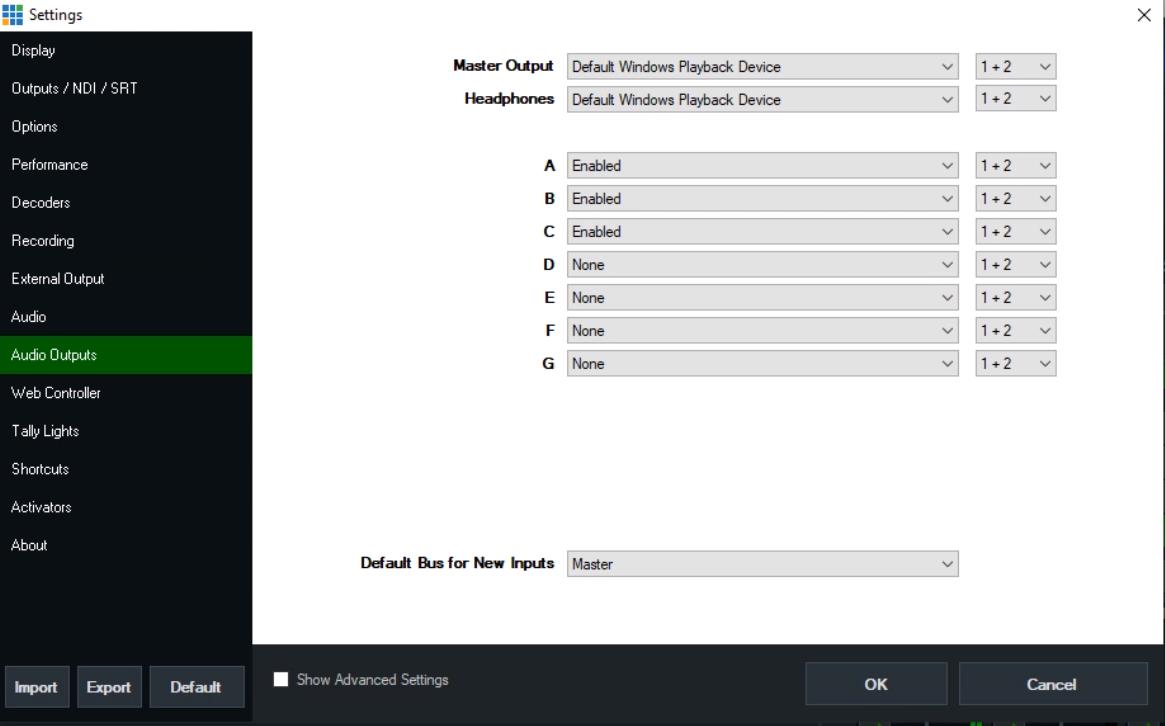
- Enable A, B and C busses
- Regardless of your audio setup, you should have 3 different inputs coming into vmix for each audio language. (Alternatively you can use left/right channel of one input)
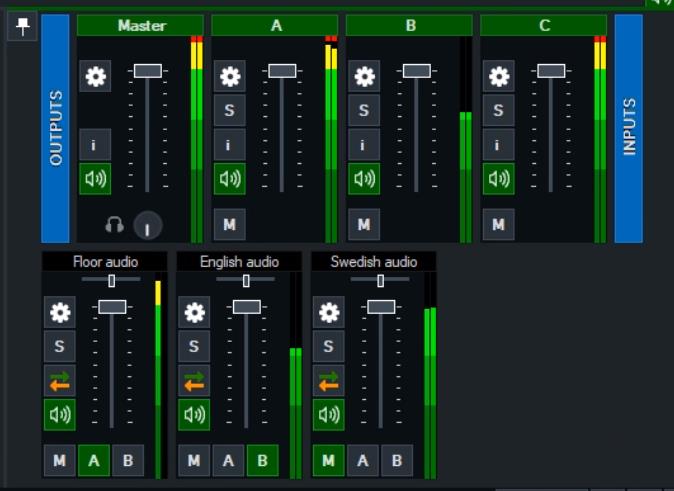
Set up Floor audio to Bus A
Set up language 2 (English) to Bus B
Set up language 3 (Swedish) to Bus C
Following matrix part is optional and more like preference in the production:
Set up Floor audio input matrix as follows to route:
- Floor → A bus
- Floor → Master left
- Floor → Headphones
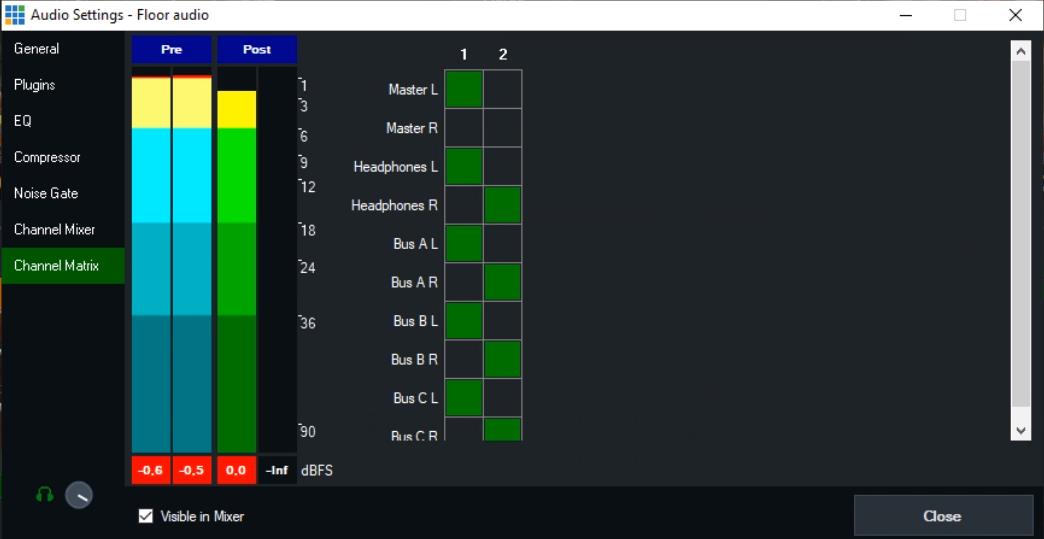
B and C busses can be enabled in matrix, but not as audio sends

Set up language 2 (English) as follows:
- Lang 2 → Master R
- Lang 2 → B bus
- Lang 2 → Headphones
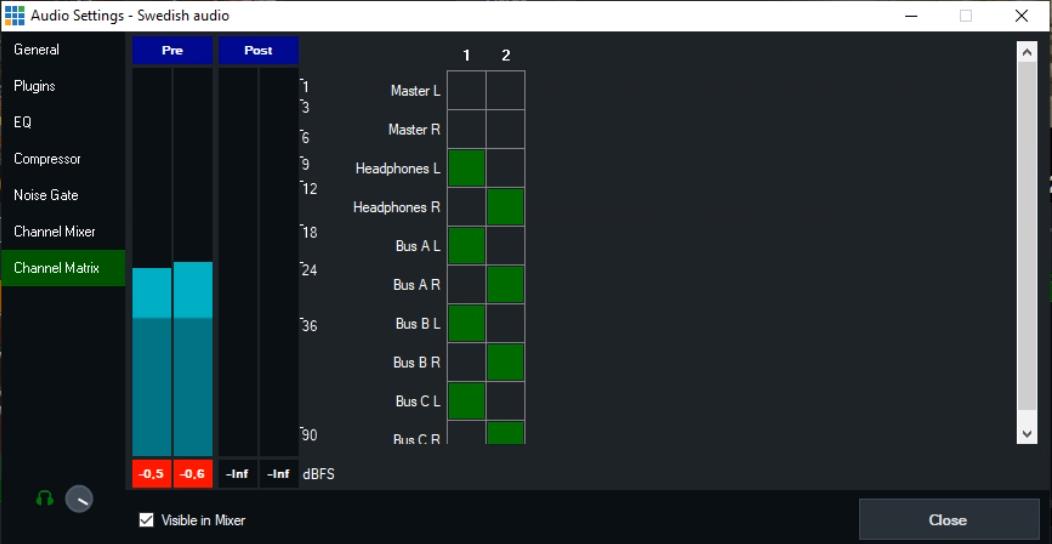
Set up language 3 (Swedish) as follows:
- Lang 3 → Bus C
- Lang 3 → Headphones
Local recording
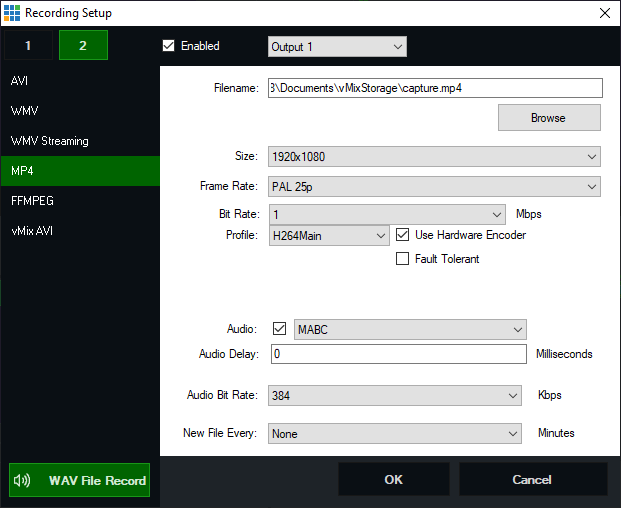
You should record all the different buses as backup by enabling WAW recording from Recording Setup window.
With routing above, you’ll get backup recording where left channel is your floor language and right is language 1.
For local recording of 3rd language you’ll need to enable 2nd recording output and choose Bus C as audio.
Streaming settings
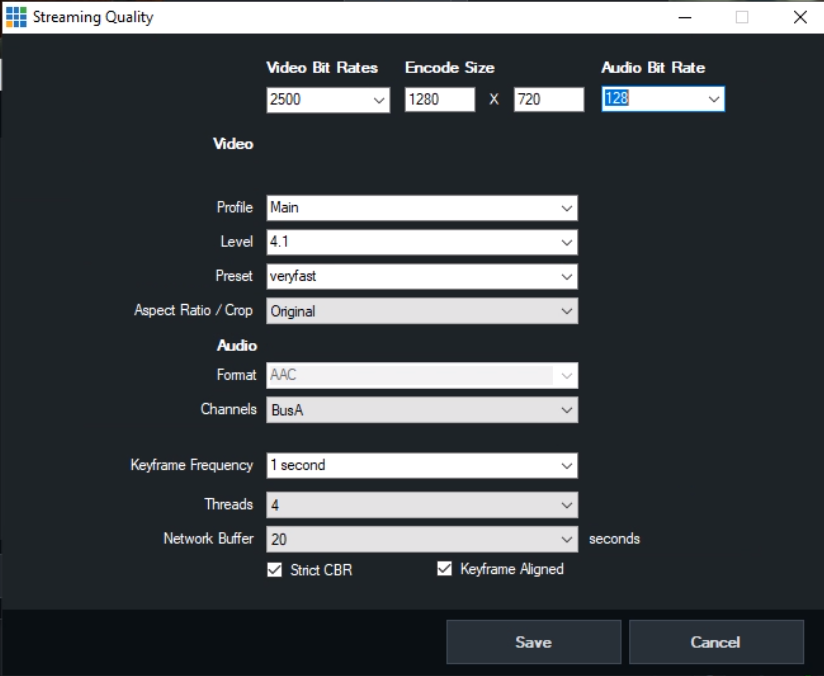
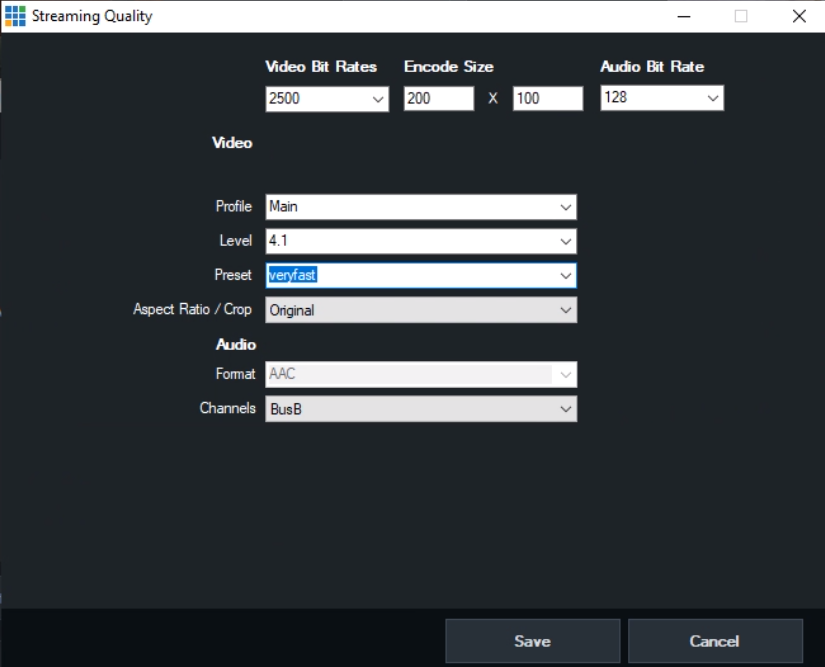
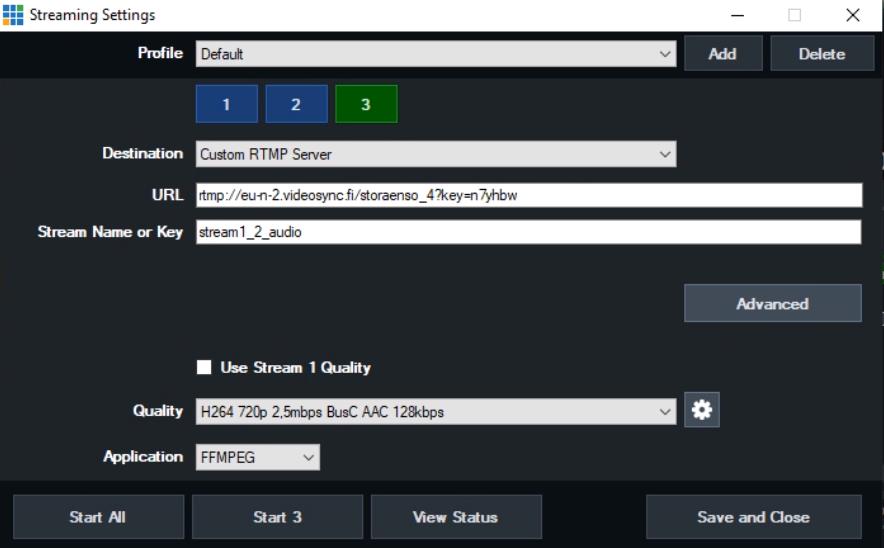
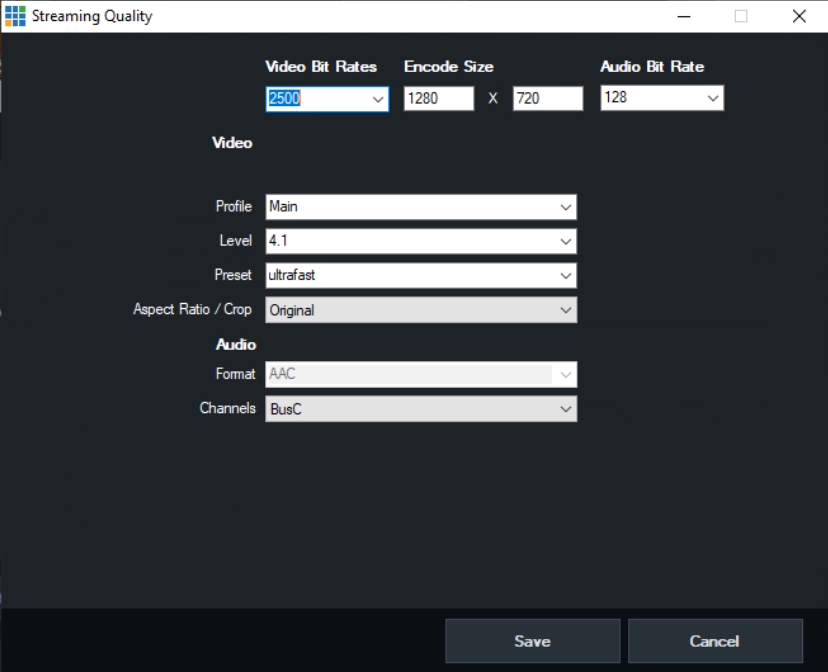
Set up floor, language 1 and language 2 outputs to 3 different streaming outputs. Note that bitrates and h264 levels should match to screenshots because playback manifests (bitrates) are hard coded in this setup.
Note about stream 2 and 3 bitrates: live playback requires high bitrate only for output 1 and audio tracks from outputs 2 and 3 are merged to output 1 video. However, you can stream outputs 2 and 3 with same/high bitrate if you know that you’ll need to publish interpreted recording. (see later for VOD options)
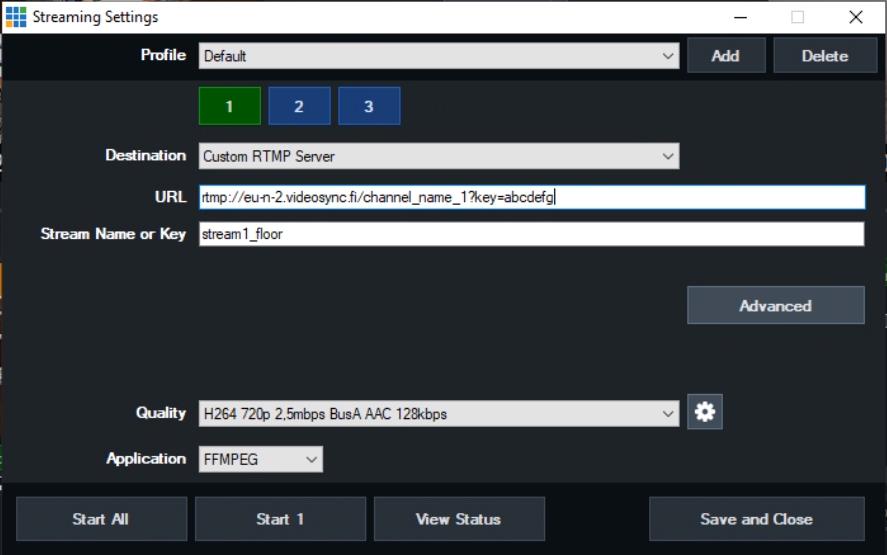
Check URL from videosync.
Stream names:
stream1_floorstream1_1_audiostream1_2_audio
Video settings for output 1
- Profile: Main
- Level: 4.1
- Channels: BusA
- Keyframe Frequency: 1 second
- Keyframe aligned
Video settings for output 2
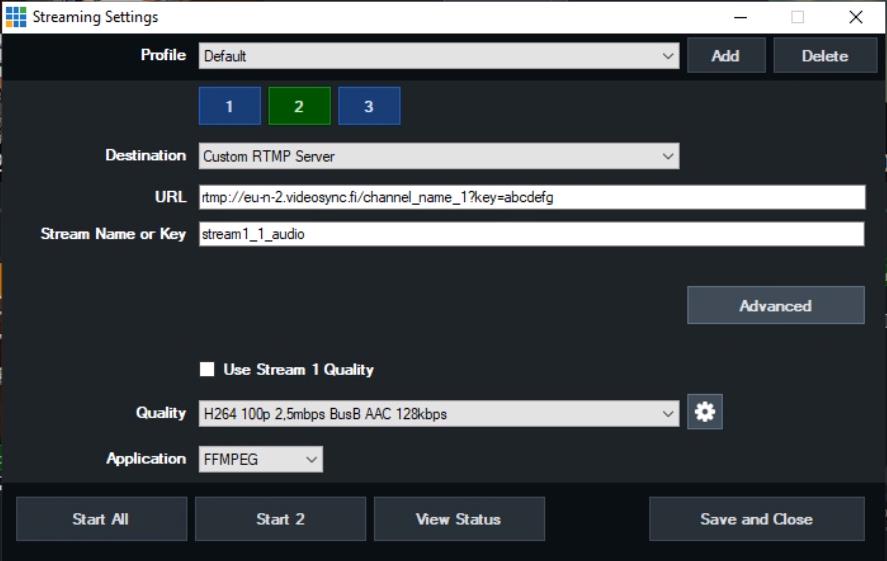
Video settings for output 3
Additional notes
- You can use hardware encoder but your GPU may limit it to 2 or 3 concurrent streams with hardware encoder (including recording)
- Bitrates, profiles and levels can be changed but the changes should be reflected to SMIL file in Wowza (Support can do this)
- You can use vmix “solo” to pre-listen any of the languages (busses)
VideoSync settings
Live channel settings
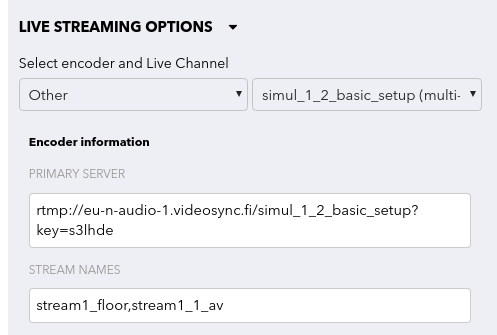
Check that you have selected the correct live channel with multi language functionality.
NOTE: The stream names shown under Stream names can contain also other “internal stream names”. You should always use:
stream1_floorstream1_1_audiostream1_2_audio
Viewing page options
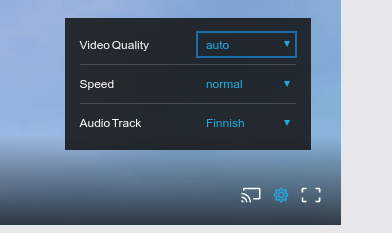
Viewer should be able to select the audio track under the settings in the player.
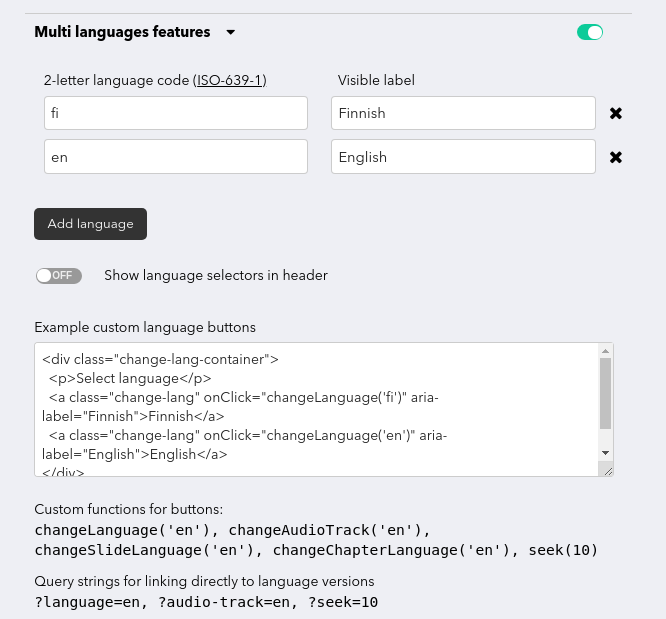
You can copy-paste custom buttons from Multi language features to Video/Slide → Content below video section. Multi language features is just HTML generator for getting the buttons and for controlling multi language slides & chapters.
This is old version.
HTML:
<p class="language-buttons">
  <a onClick="changeAudioTrack('fi')" class="language-button">Follow broadcast in Finnish</a>
  <a onClick="changeAudioTrack('en')" class="language-button">Follow broadcast in English</a>
  <a onClick="changeAudioTrack('sv')" class="language-button">Follow broadcast in Swedish</a>
</p>
CSS:
.language-buttons {
  display: flex;
  align-items: left;
  flex-wrap: wrap;
}

/* Change text & background color to match the UI */
.language-button {
  cursor: pointer;
  color: #fff;
  background: rgb(51, 51, 51);
  border: 0;
  padding: 10px 20px 10px 20px;
  margin-right: 15px;
  text-decoration: none;
  font-weight: 300;
  margin-top: 10px;
}
Recordings & VOD publishing
VideoSync will record the main stream (stream1_floor) and ingested languages automatically to separate .mp4 files. However, the other languages won’t be visible by default and the VOD playback don’t currently support multi track audio.
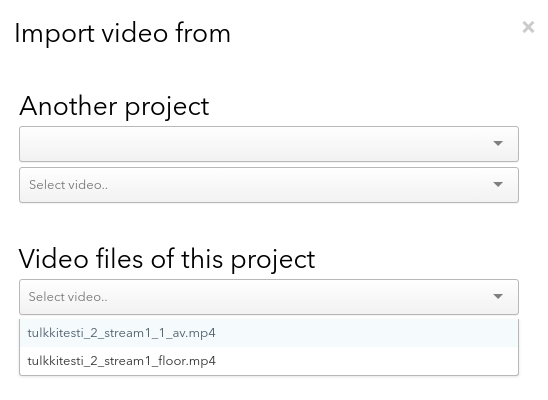
You can access the interpreter recordings from Edit & add video → Add clip → Import from VideoSync
Currently, VideoSync does not support multi audio track playback natively, so if you need to publish multi language VODs there are some workarounds.
Publishing multi-language VODs
-
Publish different language versions as one long video, where different recordings are combined one after another.
-
Copy-paste slide changes with videosync editor (using Add recorded slides button or raw log tools) to all 3 clips.
NOTE: Do not add chapters to other languages if you don’t want them to be shown 2 or 3 times in UI.
-
Check the timestamps for language versions in seconds. (Click relevant slide on viewing page to see the seconds to
?seek=123param in the url) -
Language buttons are usually added to Content below video section (Under Video/Slide) like this:
<a class="change-lang" onClick="changeLanguage('fi');seek(5);" aria-label="Finnish">Finnish</a>So add that ;seek(5); with correct value (in seconds) to point out to that correct language.
OR
Alternative: Add chapters for different languages
Alternatively, you can duplicate the event (and its videos) to publish languages as totally separated links but then you need to make sure that you have enabled authentication to both events. Referrer auth can be used to cross-link events but referrer is not “strong auth method” (can be easily spoofed).
Can't find what you're looking for?
Our AI assistant is here to help you find the information you need.