
Add different authentication options
Last updated: December 11, 2025
Important: Authentication features are not yet available for new event sites. This feature is only available for events using the classic event site platform.
Authentication controls who can access and view your event, which is separate from registration (how attendees sign up). Even if your event has no registration required, you can still restrict access using authentication methods like passwords, IP restrictions, or Single Sign-On (SSO).
Authentication settings are accessed via Build → Authentication.
Authentication Modes
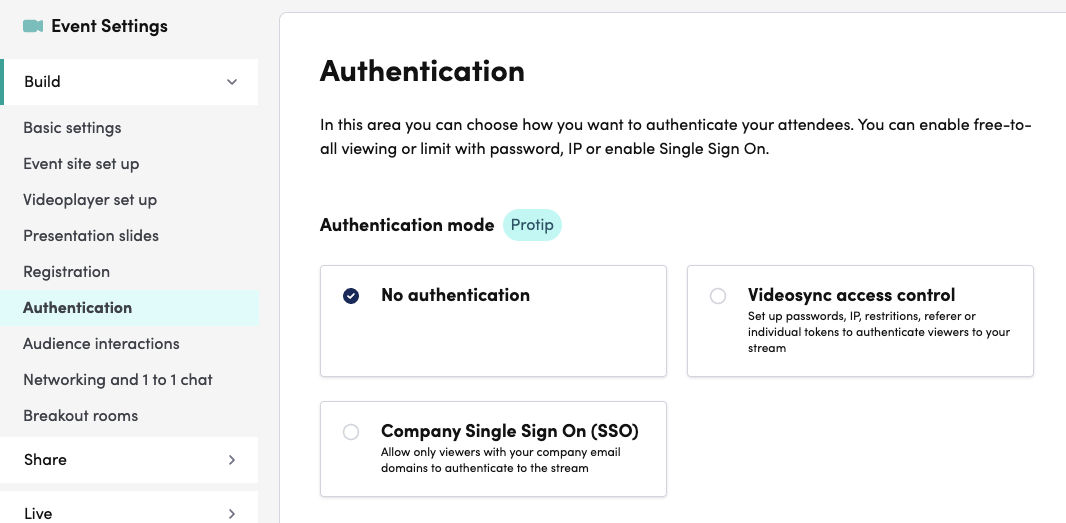
You can choose from three authentication modes:
- No authentication - Event is accessible to everyone without restrictions
- Event access control - Use Videosync’s built-in protection methods (passwords, IP restrictions, tokens, etc.)
- Company Single Sign On (SSO) - Require authentication through Microsoft 365 or Google Workspace
These modes are mutually exclusive—you select one mode for your event.
Event Access Control
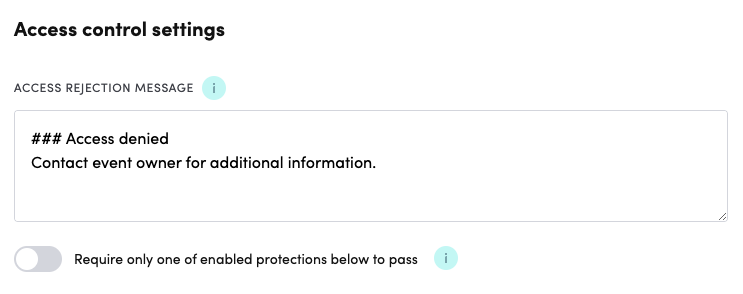
When you select the Event access control mode, you can enable one or more protection methods. These are Videosync’s built-in access control features.
General Settings
Access rejection message: This message is displayed when someone tries to access the event without proper authentication. You can customize this message with your own text.
Require only one of the enabled protections below to pass: When you enable multiple protection methods, this toggle determines whether users need to pass ALL methods (toggle off) or just ONE method (toggle on) to access the event.
Password protection
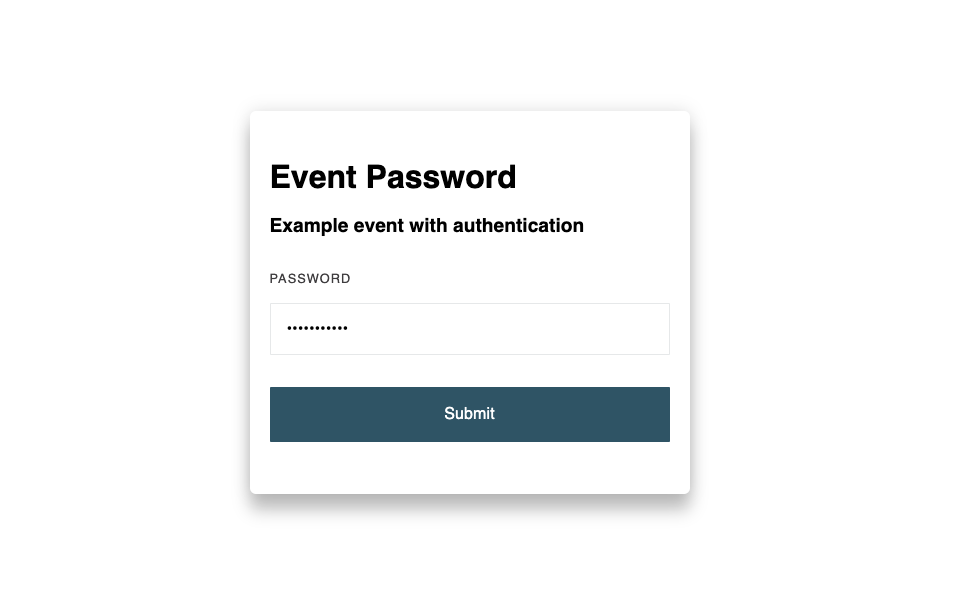
Enabling Password protection provides you a simple “login” page before entering the actual event site.
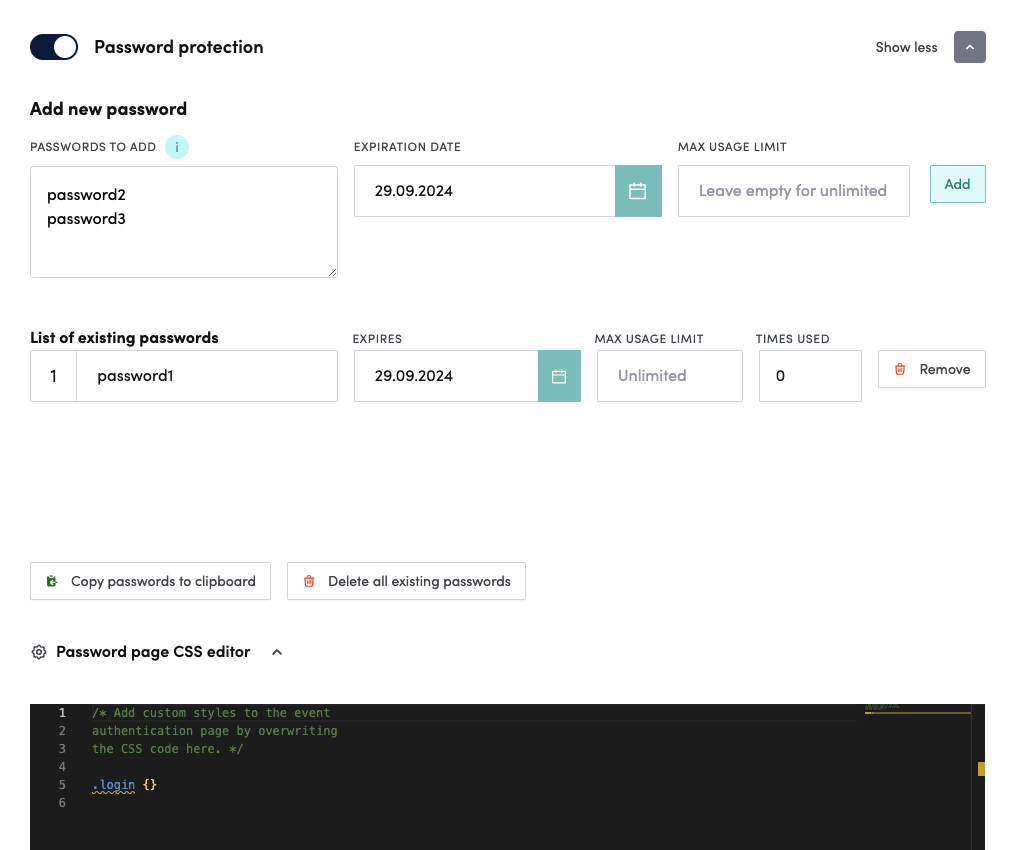
The first section Add new password allows you to add passwords of your choosing by typing them in the Passwords to add field, one password per line as pictured.
Expiration date allows you to set the last point of time the password will be valid for accessing the site. Max usage limit field can be either left empty or filled in for setting the number of uses the password is valid for use. If you set it to 10, the password(s) will automatically deprecate after 10 “logins”.
Add button will add the password(s) to the List of existing passwords.
This list shows all of the existing passwords, their expiration date, usage limits and the number of times they have been used. All of the fields except “times used” are editable. Remove button allows you to remove a password thus making it invalid for future use.
Below the list there are two buttons Copy passwords to clipboard and Delete all existing passwords. They are both pretty self-explanatory and most useful in cases where there are hundreds of passwords to share/delete.
Finally, there is a Password page CSS editor that allows you to modify the default styles of the “login” page in case you are experienced in writing CSS code.
The login page looks like this by default:
Allowed IPs
Restrict event access to specific IP addresses or IP ranges. This is useful for corporate events where you want to ensure attendees are accessing from your company network. You can enter multiple IP addresses (one per line) and use CIDR notation for IP ranges (e.g., 192.168.0.0/16).
Tokens
Generate unique tokenized URLs that grant access to your event. Each token has an expiration date and usage limit. Tokens are useful when you need restricted access without requiring registration—simply distribute the tokenized URLs to your intended audience. Each token can be copied, deleted, or have its settings modified.
Referer protection
Allow access only when users arrive from specific referring websites or URLs. Enter the allowed referring URLs (one per line) in the settings. This prevents users from directly accessing your event URL and ensures they come through an authorized webpage. If the user is coming from url that is defined in the list, they will be allowed to access the event. Also embedded Videosync events (iframe) can be protected using referer protection feature. Usually domain is used for referer protection but also full urls can be used. Referer protection uses prefix matching (after stripping http/https), so listing example.com will allow access from any URL that starts with example.com including all its subpages and it doesn’t matter whether there is http://, https:// or nothing in the beginning of the url.
Automatic redirect to URL
Automatically redirect visitors to a different URL. This is helpful when you need to move an event to a new location or want to direct traffic to an external registration page.
Allow only one device per registered user
Restrict registered users to access the event from only one device at a time. If a user tries to access from a second device, they will see a custom access rejection message that you can configure. This helps prevent credential sharing.
Company Single Sign On (SSO)
When you select the Company Single Sign On mode, attendees must authenticate using their company credentials through Microsoft 365 (Azure) or Google Workspace. This ensures only users with valid corporate accounts from allowed domains can access your event.
SSO features require account-level enablement. Contact Videosync sales if you need SSO authentication for your events.
Office 365 (Azure) authentication
Authenticate users through Microsoft 365 (Azure Active Directory). Users must have accounts in the allowed domains configured at your account level. You can optionally enable “Redirect user automatically to Microsoft login page” to skip the event landing page and send users directly to Microsoft’s login.
Google authentication
Authenticate users through Google Workspace. Similar to Azure authentication, users must have Google Workspace accounts in the domains configured at your account level.
Allow access alternatively with password or token
This option allows you to combine SSO with password or token-based access, giving users flexibility in how they authenticate. Users can choose to either log in via SSO (Microsoft/Google) OR use a password/token. This is useful when you have both internal employees (who use SSO) and external guests (who need passwords or tokens).
Require password after SSO login
Add an additional security layer by requiring users to enter a password AFTER successfully logging in via SSO. This two-step authentication ensures even higher security for sensitive events. Users must first pass SSO authentication, then provide the additional password you’ve configured.
Related Articles
- Introduction to Registration features - Learn about registration modes and how attendees sign up for events
Can't find what you're looking for?
Our AI assistant is here to help you find the information you need.