
How to configure Microsoft Login (SSO)
Last updated: August 20, 2025
Videosync supports authenticating users via Microsoft Login using OpenID Connect (OICD) for admin users and also to the event participants.
Allowing users to login via Microsoft Login to the admin
For your organisation’s users to be able to login via Microsoft Login, there are couple of steps to make it work:
- Account needs to have a user with your organisation email.
- Go to the Videosync login (https://videosync.fi/login) page and click Sign in with Microsoft

- This will redirect you to Microsoft Login page. After you sign in, it will tell you that you are about to give access to certain information about you for our app. We ask for your name, email and profile. Depending on your organisation settings, it may present you with “Need admin approval” popup.
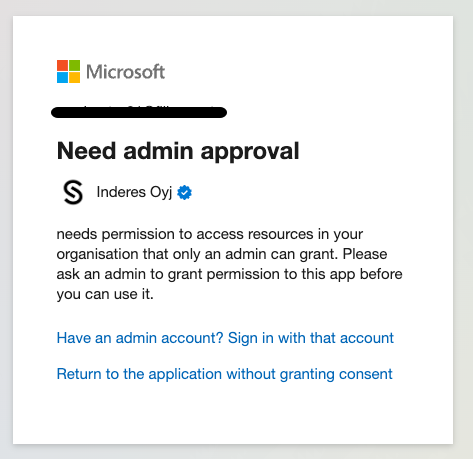
..or if you are an admin already, it will ask you if you want to enable this for all of your organisation users.
After the first login (or admin consent), the Videosync app should now appear in the Azure portal in the enterprise apps section (EntraApp) where you can adjust admin consent on behalf of your users.
Sign in with Microsoft works only for users (emails) that are manually added as Videosync users. When adding a user to account, the user can be limited to be able to login only via Microsoft if needed.
Setting up Microsoft Login to an event
Videosync supports authenticating your event viewers with Microsoft Login. The authenication is based on viewers’ email domain and no personal data is being collected.
Prequisities
- Get list of all email domains you want to accept. e.g. company.com, company.fi, company.se
- Send the list of email domains to Videosync support
- Videosync support configures the 365 login domains to your Videosync account
Testing and information for IT deparment
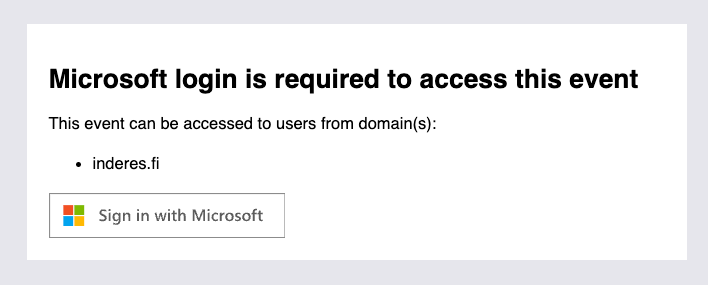
- Set up an event with 365 authentication enabled: Build → Authentication → Company Single Sign on (SSO) → Office 365 (Azure) authentication
- Test to login to this event
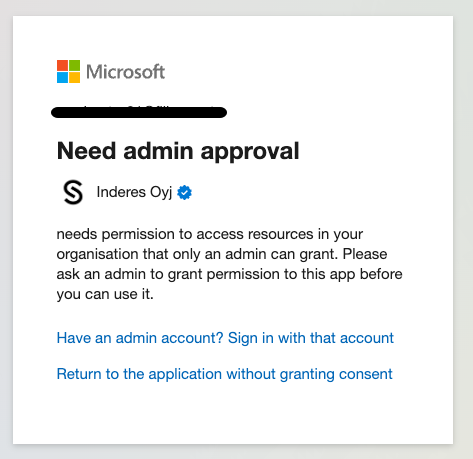
- Depending on your organisation’s 365 settings, you may get notification that signing “Needs admin approval”. If so, please contact your IT department to approve logging into Videosync with your 365 account. You can link this page to your IT department.
- If you were able to log in and you see your event - congratulations: the SSO login is now enabled.
For IT / 365 admins:
- Videosync will only get the basic data from your users: Name, email and profile picture.
- The data given to us is only checked against the whitelisted email domains and not stored in Videosync.
- Videosync client ID: 858b51d5-bb0f-416d-ab85-62af4b246264
Can't find what you're looking for?
Our AI assistant is here to help you find the information you need.